How to Block Someone on LinkedIn (Step-by-Step Guide)

Trust Score: 4.8
389 reviews
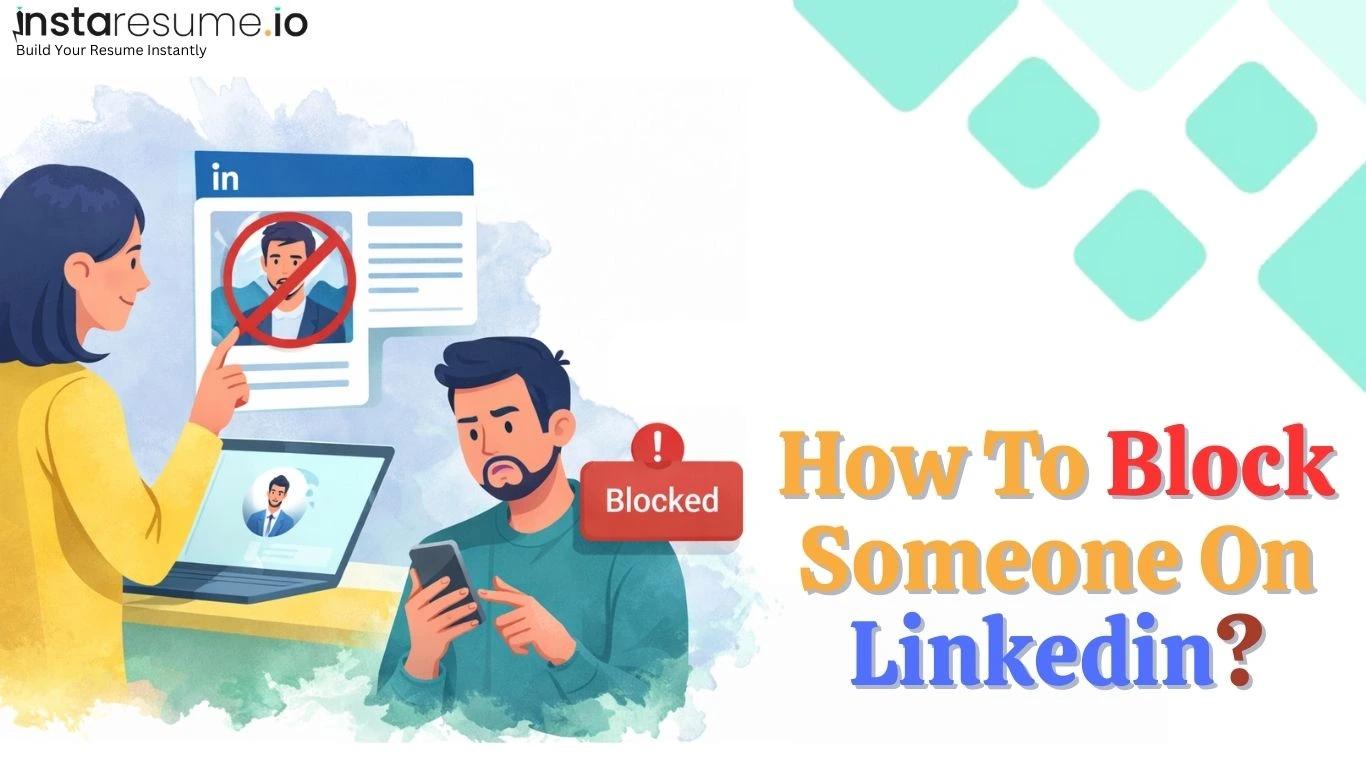
Table of Contents
Professional networking on LinkedIn has become an essential part of building a career in today’s digital world. Millions of professionals use LinkedIn to connect with recruiters, expand their network, discover job opportunities, and showcase their skills and achievements. Because LinkedIn is designed for professional interactions, maintaining a positive and secure networking environment is extremely important.
However, like any online platform, LinkedIn users may occasionally encounter unwanted interactions. These may include spam messages, persistent connection requests, harassment, or communication that feels unprofessional or uncomfortable. In such situations, protecting your privacy and maintaining control over who can interact with you becomes necessary. LinkedIn provides several privacy tools to help users manage their professional space, and one of the most effective options is the block feature.
Blocking someone prevents them from viewing your profile, sending messages, or interacting with you on the platform. This feature helps ensure that your networking experience remains safe, respectful, and focused on professional growth.
In this guide, you’ll learn how to block someone on LinkedIn step by step, both on desktop and mobile. We will also explain what happens after you block someone, when blocking is the right option, and how you can unblock a user if you change your mind later.
When Should You Block Someone on LinkedIn?
While LinkedIn is designed for professional networking and career growth, there may be situations where interacting with certain users becomes uncomfortable or unproductive. In such cases, blocking someone can help you maintain a safe and professional online environment.
Blocking should generally be used when other options such as ignoring messages or removing a connection are not enough to stop unwanted interactions. Below are some common situations where blocking someone on LinkedIn may be the best option.
Receiving Spam or Promotional Messages
Some users misuse LinkedIn by sending repetitive promotional messages, advertisements, or irrelevant business offers. If someone continually sends spam messages or unsolicited promotions, blocking them can prevent further communication.
Harassment or Inappropriate Communication
If a user sends messages that are offensive, aggressive, or unprofessional, it is important to protect your professional space. Blocking the person immediately stops them from contacting you or interacting with your profile.
Persistent Unwanted Connection Requests
Occasionally, someone may repeatedly send connection requests or messages even after being ignored or declined. Blocking can help stop these persistent attempts and prevent further interruptions.
Professional Conflicts or Privacy Concerns
In some cases, you may want to limit access to your profile due to workplace conflicts, sensitive professional situations, or personal privacy reasons. Blocking ensures that the individual cannot view your profile, activity, or updates.
Fake or Suspicious LinkedIn Accounts
Fake profiles and suspicious accounts sometimes attempt to connect with users for scams, data collection, or phishing attempts. If you notice an account that appears suspicious or untrustworthy, blocking it can help protect your personal and professional information.
Step-by-Step Guide: How to Block Someone on LinkedIn
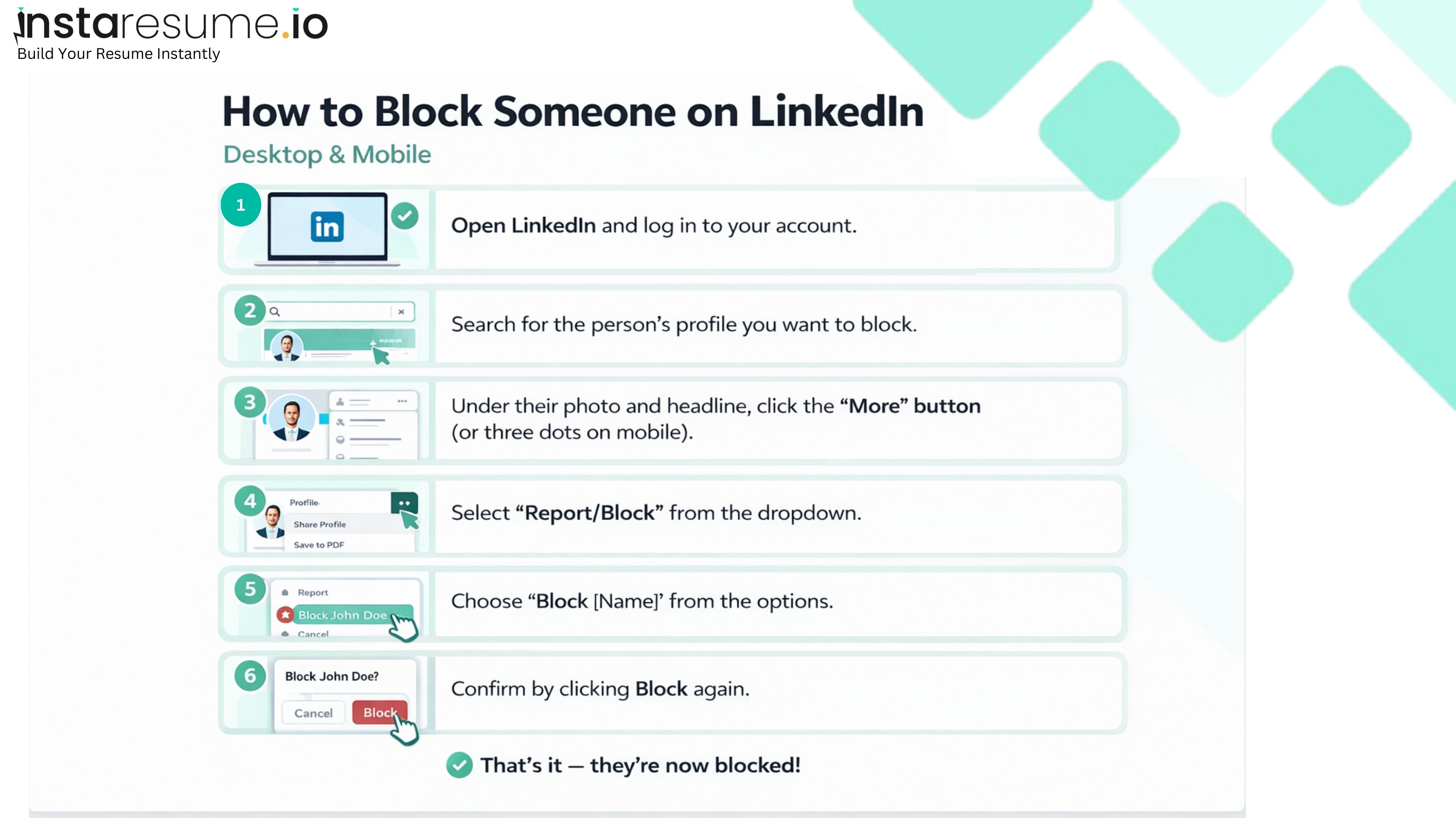
If you want to stop someone from viewing your profile or contacting you on LinkedIn, you can use the block feature. The process is simple and works almost the same on both desktop and mobile. Follow these steps to block a user.
Step 1: Open LinkedIn and Log Into Your Account
Start by opening LinkedIn in your web browser or launching the LinkedIn mobile app. Log in using your account credentials to access your profile and settings.
Step 2: Search for the Person’s Profile
Use the search bar at the top of the LinkedIn homepage to type the name of the person you want to block. From the search results, click on their profile to open it.
Step 3: Click the “More” Button
Once you are on the person’s profile page, look for the “More” button located below their profile headline. On the mobile app, this option usually appears as a three-dot icon (•••).
Step 4: Select “Report/Block”
After clicking the More button, a dropdown menu will appear. From the list of options, choose “Report/Block.”
Step 5: Choose “Block [Name]”
LinkedIn will display different options related to reporting or blocking the user. Select “Block [Person’s Name]” to proceed.
Step 6: Confirm the Block
To complete the process, LinkedIn may ask you to enter your account password for security verification. After confirming, click Block again.
Once completed, the person will immediately be blocked and will no longer be able to view your profile, send messages, or interact with you on LinkedIn.
How to Block Someone on LinkedIn Using the Mobile App
If you primarily use LinkedIn on your smartphone, blocking someone is just as simple as it is on the desktop version. The steps are very similar for both iPhone and Android users, with only minor differences in the interface layout.
Follow the steps below to block someone using the LinkedIn mobile app.
Step 1: Open the LinkedIn Mobile App
Launch the LinkedIn app on your iPhone or Android device and log in to your account if you are not already signed in.
Step 2: Search for the Person
Tap on the search icon at the top of the screen and type the name of the person you want to block. Select their profile from the search results to open their profile page.
Step 3: Tap the Three-Dot Menu
On the person’s profile, look for the three dots (•••) in the upper-right corner of the screen. Tap this icon to open additional options.
Step 4: Select “Report or Block”
A menu will appear with several actions you can take. Tap “Report or Block” to continue.
Step 5: Choose “Block [Name]”
LinkedIn will show you the option to block the person. Tap “Block” and confirm your choice.
Step 6: Enter Your Password to Confirm
For security purposes, LinkedIn may ask you to enter your account password before the block is completed.
Once confirmed, the user will be immediately blocked, meaning they will no longer be able to view your profile or send you messages.
How to Unblock Someone on LinkedIn
If you change your mind after blocking someone on LinkedIn, you can easily unblock them through your account settings. Unblocking allows the person to view your profile again and interact with you on the platform.
Follow these steps to unblock someone on LinkedIn:
Step 1: Go to LinkedIn Settings
Log in to your LinkedIn account and click on your profile picture at the top of the homepage. From the dropdown menu, select “Settings & Privacy.”
Step 2: Click on “Visibility”
In the settings panel, locate and click the “Visibility” section, which contains options related to profile and activity visibility.
Step 3: Select “Blocking”
Scroll down until you find the “Blocking” option. This section shows a list of all the LinkedIn accounts you have blocked.
Step 4: Click “Unblock”
Next to the name of the person you want to unblock, click the “Unblock” button.
Step 5: Enter Your Password
For security reasons, LinkedIn will ask you to enter your account password to confirm the action. After entering the password, the person will be removed from your blocked list.
Important: The 48-Hour Rule
Once you unblock someone, LinkedIn has a 48-hour waiting period before you can block the same person again. This rule is designed to prevent repeated blocking and unblocking actions.
Keep in mind that unblocking someone does not automatically reconnect you if you were previously connected. If you want to reconnect, you will need to send a new connection request.
Build a Professional Resume and Cover Letter to Strengthen Your LinkedIn Job Applications
Optimize Your LinkedIn Profile with a Professional Resume
Blocking unwanted users helps keep your professional space secure, but building a strong profile is just as important for attracting the right opportunities on LinkedIn. Recruiters often review both your LinkedIn profile and your resume before reaching out.
If you’re applying for jobs or networking with hiring managers, having a well-structured resume can make a big difference. Instead of starting from scratch, you can use a free resume maker to quickly create a polished and ATS-friendly resume.
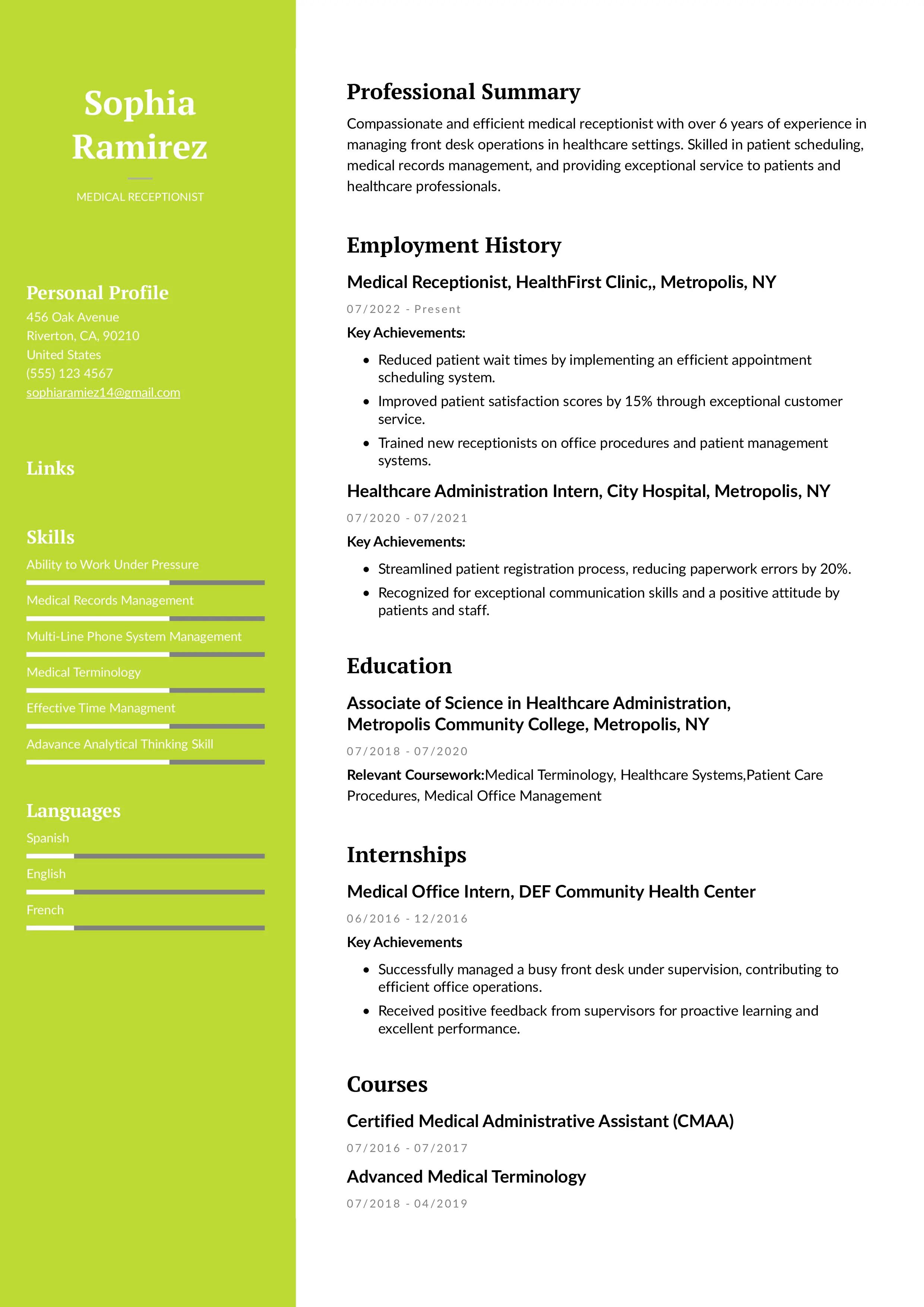
With Instaresume, you can:
 Choose from the best resume templates used by professionals
- Tailor your resume to match job description keywords
- Build an ATS-friendly resume that recruiters can easily scan
- Download and edit your resume anytime
Create a Matching Cover Letter for Your Job Applications
A strong resume is important, but many recruiters also expect a well-written cover letter that explains your motivation and highlights your key strengths.
Instead of struggling with formatting or wording, you can use a cover letter generator to create a personalized cover letter tailored to the job you’re applying for.
College Student Cover Letter Example
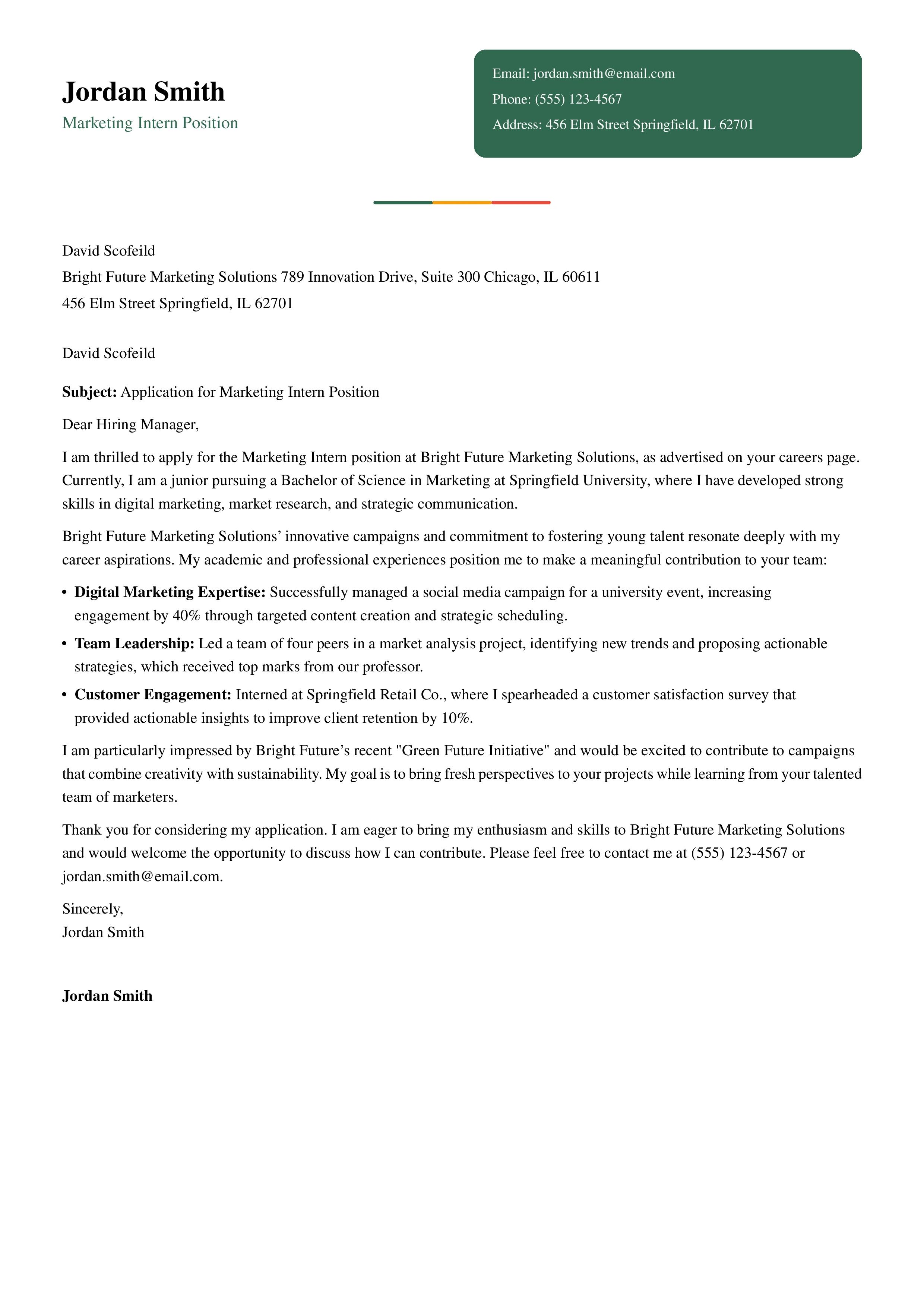
With Instaresume’s cover letter generator, you can:
- Generate job-specific cover letters instantly by uploading your resume and job description because of Instaresume's AI cover letter generator.
- Customize content based on the job description using AI
- Pair your resume with a professional cover letter design
- Download an editable version you can reuse
Additional LinkedIn Privacy Tips
Maintaining privacy on LinkedIn is important for creating a safe and professional networking experience. While blocking unwanted users is helpful, LinkedIn also offers several privacy settings that allow you to control how others interact with your profile and information. Adjusting these settings can help you manage your professional presence more effectively.
Adjust LinkedIn Privacy Settings
LinkedIn provides multiple privacy controls within the Settings & Privacy section. Reviewing and updating these settings regularly can help you decide who can view your activity, profile details, and personal information.
Limit Who Can See Your Connections
By default, your connections may be visible to other users. If you prefer more privacy, you can limit this visibility so only you can see your full connection list. This helps prevent others from accessing or contacting people in your network unnecessarily.
Manage Message Requests
LinkedIn allows users outside your network to send message requests. If you receive too many unwanted messages, you can adjust message request settings to reduce spam and maintain more control over who can contact you.
Enable Two-Step Verification
Adding two-step verification provides an extra layer of security to your LinkedIn account. With this feature enabled, you will need to enter a verification code sent to your phone or email whenever you log in from a new device.
Control Profile Visibility
LinkedIn also allows you to manage how visible your profile is to others. You can adjust settings that control profile viewing options, public profile visibility, and activity updates, ensuring that only the information you want to share is accessible to others.
Using these privacy tools along with LinkedIn’s blocking feature can help you maintain a secure, professional, and distraction-free networking environment.
Frequently Asked Questions (FAQs)
1. Does LinkedIn notify someone when you block them?
No, LinkedIn does not send a notification when you block someone. However, the person may eventually realize they have been blocked if they try to visit your profile or send you a message and cannot find your account anymore. Blocking simply removes your visibility from their LinkedIn experience without directly informing them.
2. Can a blocked person still see my LinkedIn profile?
No. Once you block someone on LinkedIn, they cannot view your profile, posts, or activity. They also cannot message you, send connection requests, or interact with your content. Blocking creates a complete restriction between both accounts on the platform.
3. What happens to existing connections after blocking someone?
If the person you block was previously part of your network, LinkedIn automatically removes them from your connections list. If you later decide to unblock them, the connection will not be restored automatically. You will need to send a new connection request if you want to reconnect.
4. Can I block someone who is not my connection?
Yes, you can block any user on LinkedIn, even if they are not part of your network. This is helpful when dealing with spam accounts, fake profiles, or users who send unwanted message requests.
5. Can I unblock someone after blocking them?
Yes, LinkedIn allows you to unblock users through your Settings → Visibility → Blocking section. After unblocking, the person will be able to see your profile again. However, LinkedIn has a 48-hour rule, which means you cannot block the same person again for 48 hours after unblocking them.
6. Will blocking someone remove their messages from my inbox?
Blocking someone will stop all future communication, but their previous messages may still remain in your message history. If you want to remove the conversation completely, you can delete the message thread manually from your inbox.
7. Is blocking someone the same as removing a connection?
No. Removing a connection simply disconnects you from that person, but they can still view your profile and send message requests depending on your settings. Blocking is a stronger action because it completely prevents the person from interacting with you on LinkedIn.
8. Can recruiters still contact me if I block them?
If you block a recruiter, they will no longer be able to view your profile or send messages. If you are actively searching for jobs, make sure you only block recruiters who send spam or irrelevant opportunities. Instead, focus on improving your profile and resume using a free resume maker so recruiters can easily find your skills and experience.
9. How can I improve my LinkedIn profile to attract recruiters?
A strong LinkedIn profile usually includes a clear headline, detailed work experience, relevant skills, and a professional summary. Many job seekers also use a free resume builder tool to create an ATS-friendly resume that matches their LinkedIn profile. Using the best resume template can help present your achievements clearly and improve your chances of getting noticed by hiring managers.
10. Should I include a cover letter when applying for jobs through LinkedIn?
Yes, including a cover letter can increase your chances of standing out in competitive job applications. A well-written cover letter helps explain your motivation, highlight key skills, and show why you are the right candidate for the role. Many job seekers now use a cover letter generator to quickly create customized cover letters tailored to specific job descriptions.